> For the complete documentation index, see [llms.txt](https://documentation.soulver.app/llms.txt). Markdown versions of documentation pages are available by appending `.md` to page URLs; this page is available as [Markdown](https://documentation.soulver.app/ko/documentation/totals-and-subtotals.md).
# 합계 및 소합계
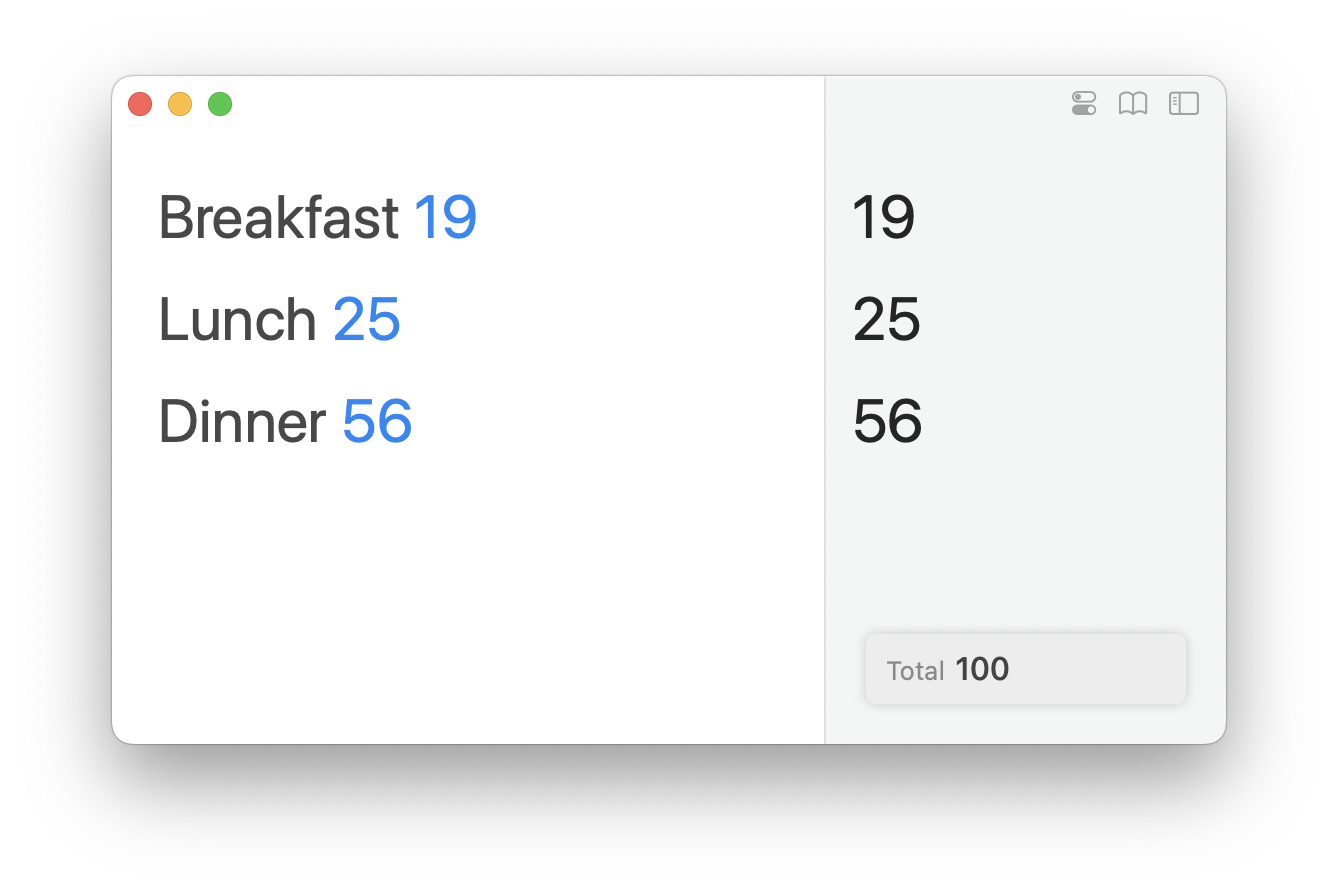
기본적으로 Soulver는 모든 줄의 합계를 오른쪽 하단 모서리에 표시합니다.
### 소계
#### Mac에서 소계 만들기
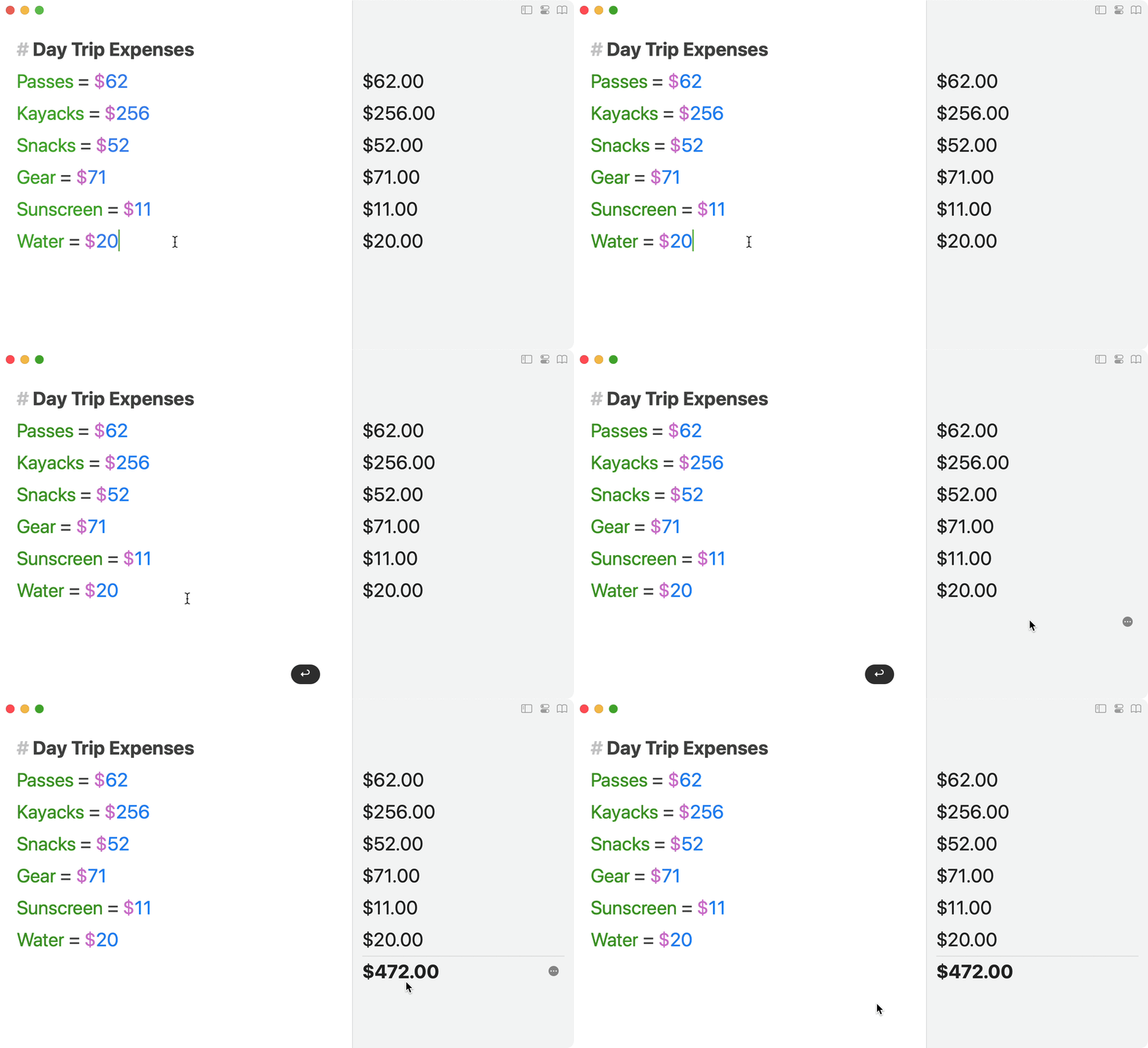
빈 줄을 추가한 다음 ⌘T를 누르거나 (빈 답변을 두 번 클릭합니다).
소계는 그 위에 있는 선을 합산하여 가장 가까운 이전 소계, 제목(`#`) 또는 [구분선](https://documentation.soulver.app/syntax-reference/headings-and-comments#divider-lines)(`---`)에서 중지됩니다.
빈 줄의 답변을 두 번 클릭하여 소계로 만듭니다
#### iPad 및 iPhone에서 소계 만들기
빈 줄을 길게 누른 다음 `소계 줄 만들기`를 선택합니다:

또는 마지막 줄 아래의 빈 공간을 탭합니다.
## 소계 작업
#### 변수에 소계 할당하기
"variable = "를 사용하고 값을 비워둠으로써 소계 줄에 변수를 생성할 수 있습니다:
#### 소계에 백분율 추가하기 (판매세와 같은)
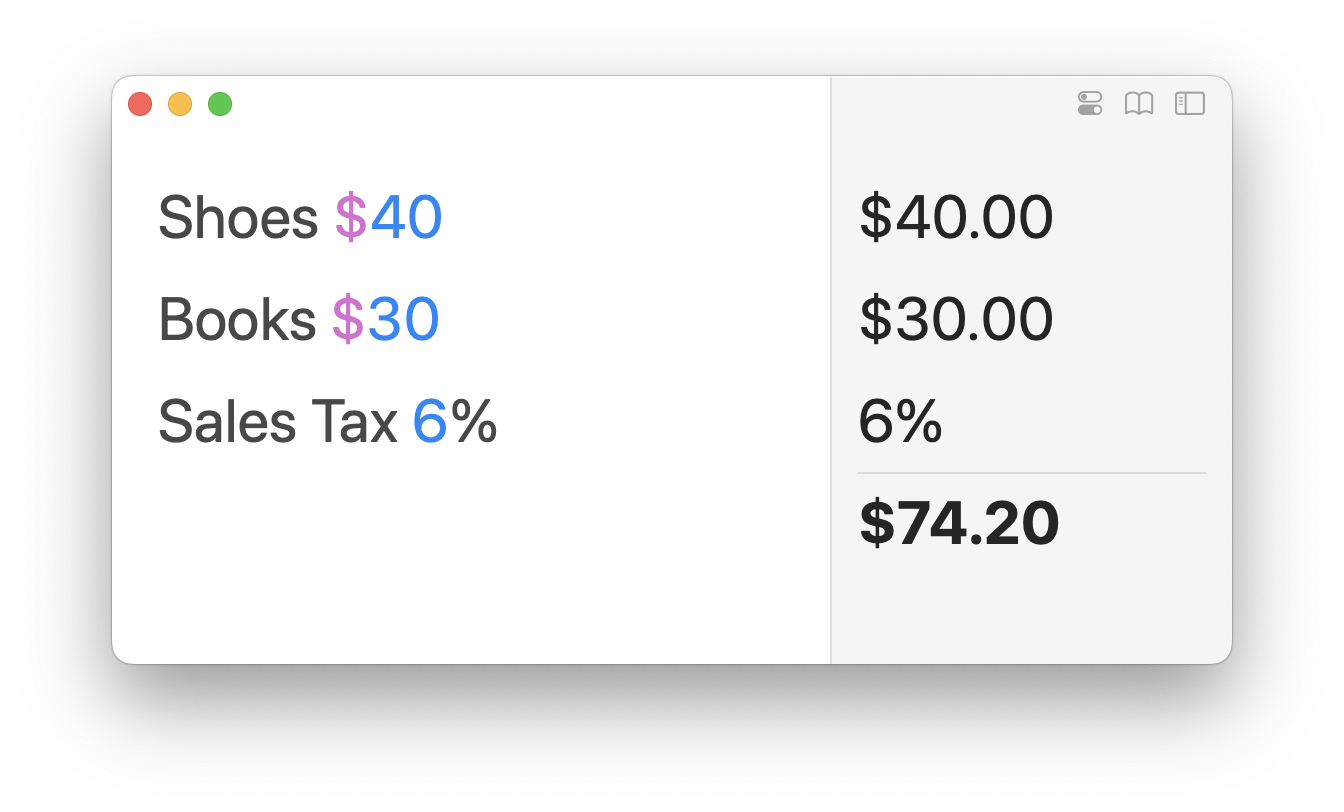
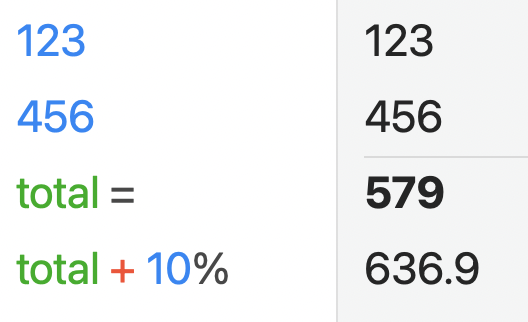
소계에 백분율 줄을 추가하여 최종 결과에 적용되도록 할 수 있습니다.
소계의 백분율은 최종 결과에 적용됩니다
선택한 라인 그룹의 합계 또는 평균을 계산하려면 [태그](/ko/documentation/tags.md)를 참조하세요.
## 플로팅 합계 사용자 지정
#### 플로팅 합계 표시/숨기기
합계가 특정 작업 흐름에 도움이 되지 않는 경우, 합계 위로 마우스를 가져간 다음 `숨기기`를 클릭하여 숨길 수 있습니다.
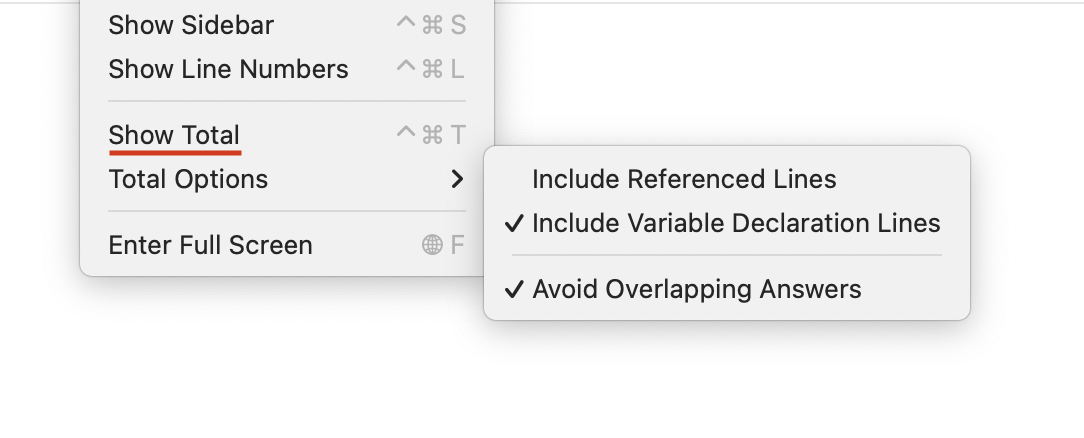
합계를 다시 표시하려면 `보기` 메뉴로 이동하여 `합계 표시`를 선택합니다.
추가 플로팅 합계 옵션은 보기 메뉴에서 사용할 수 있습니다
#### 통계 유형 변경하기
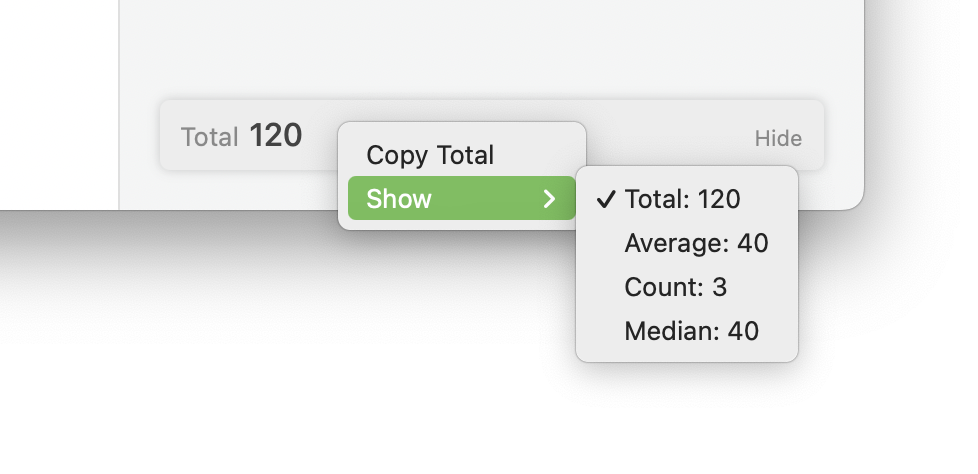
또한 플로팅 합계를 제어 클릭하고 다른 통계를 선택하여 평균, 개수 및 중앙값을 표시할 수도 있습니다.
 #### 소계에 백분율 추가하기 (판매세와 같은)
소계에 백분율 줄을 추가하여 최종 결과에 적용되도록 할 수 있습니다.
#### 소계에 백분율 추가하기 (판매세와 같은)
소계에 백분율 줄을 추가하여 최종 결과에 적용되도록 할 수 있습니다.