# Totales y subtotales

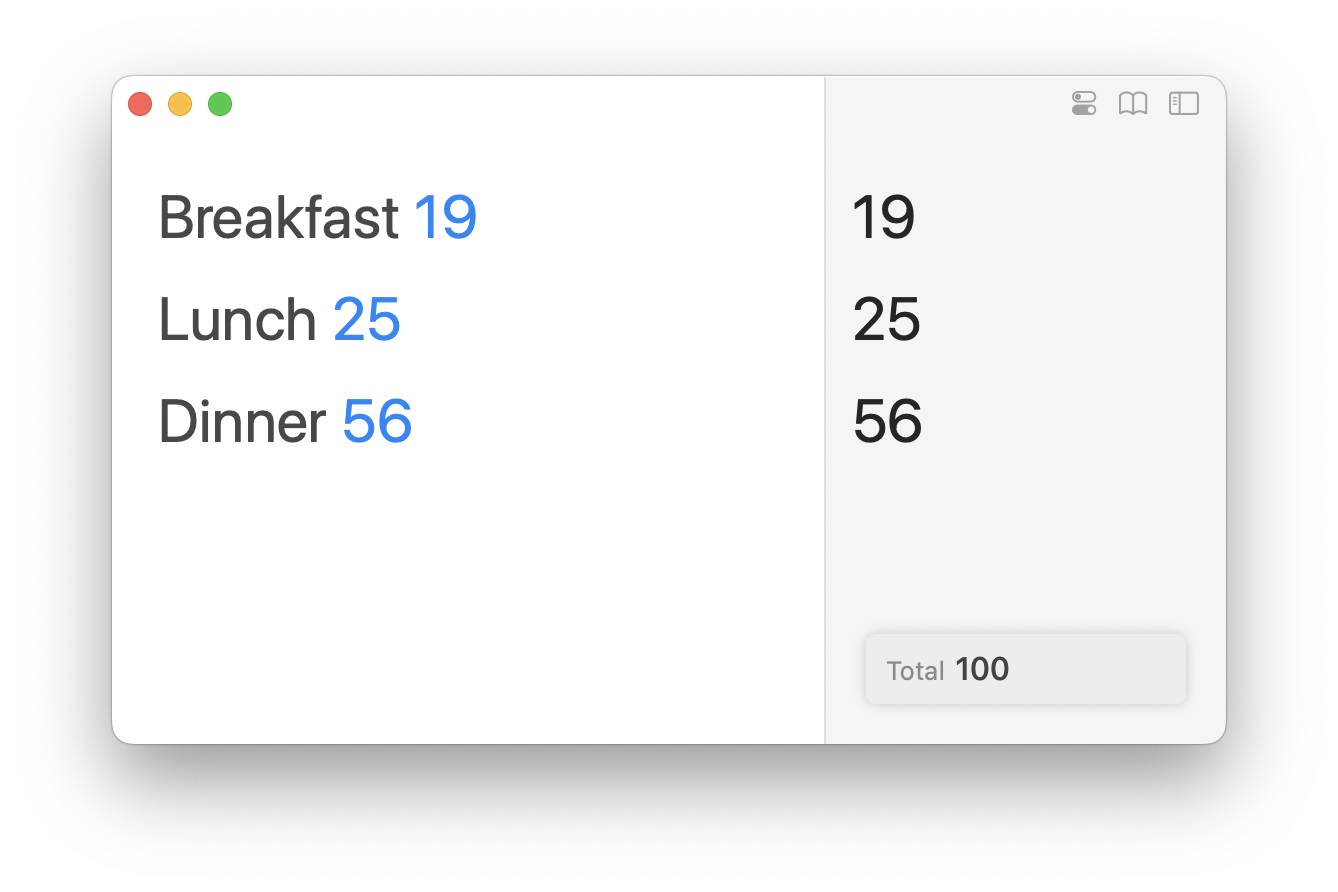
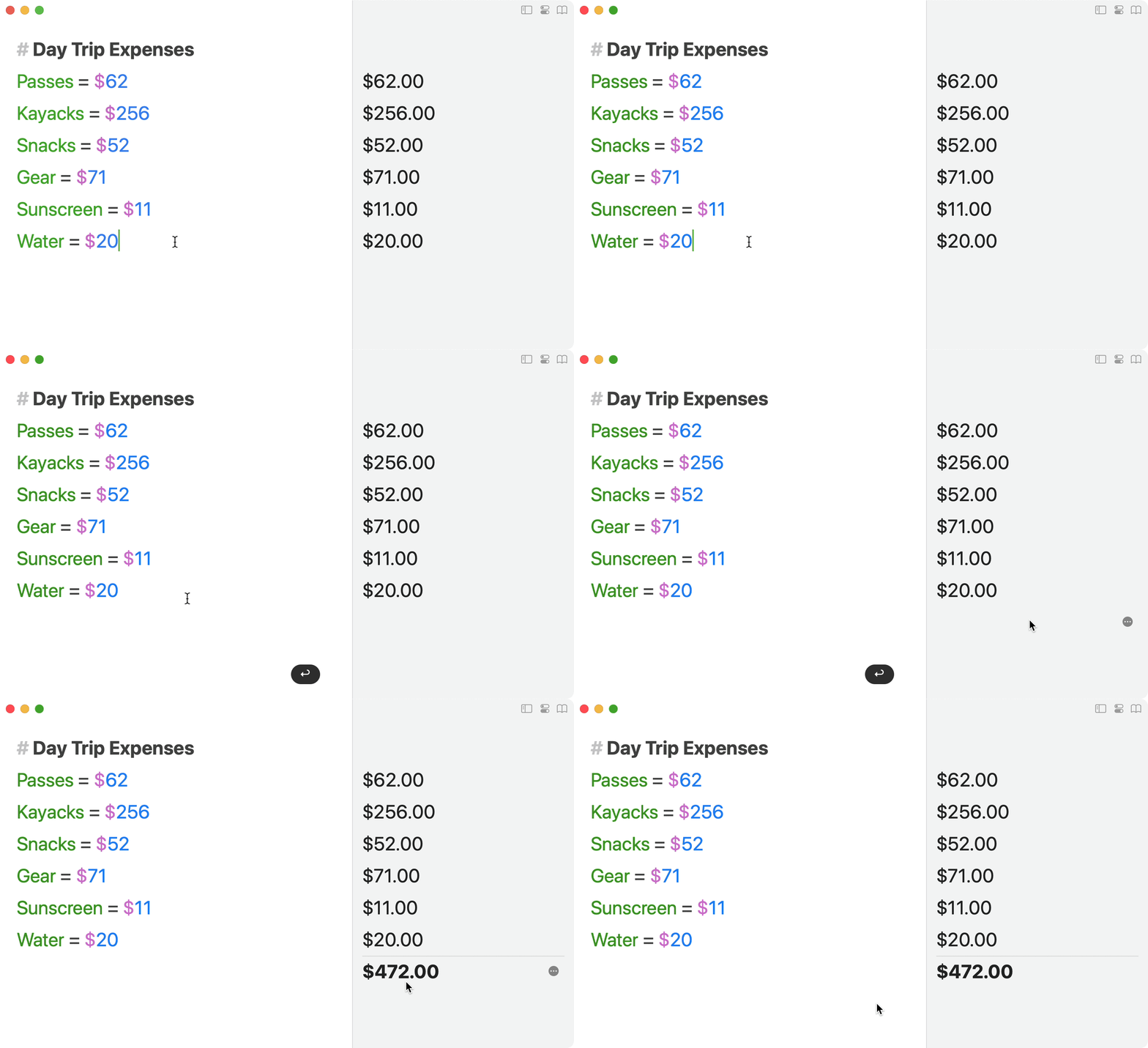
Por defecto, Soulver muestra un total de todas sus líneas en la esquina inferior derecha.

<div align="center"><img src="/files/bfiofB0Qs4emKnUunkVL" alt="A floating quick total appears in the bottom right of your sheet (by default)" width="375"></div>

### Subtotales

#### Crear un subtotal en Mac

Añada una línea en blanco y luego presione ⌘T (o haga doble clic en la respuesta vacía).

Una línea de subtotal sumará todas las líneas superiores hasta el siguiente subtotal o encabezado (#).

<div align="left"><figure><img src="/files/rKPvbGcZQcZdYEXlFjg5" alt="" width="375"><figcaption><p>Haga doble clic en la respuesta de una línea vacía para convertirla en un subtotal</p></figcaption></figure></div>

#### Crear un subtotal en iPad y iPhone

Mantenga pulsado sobre una línea vacía y elija `Make Subtotal Line` (Crear línea de subtotal):

![Subtotals in Soulver 3 for iPad](/files/aRaojTrn5EaeoEBRPu2l)

Alternativamente, toque el espacio vacío debajo de la última línea.

## Tareas de subtotales

#### Asignar un subtotal a una variable

Puede crear una variable en una línea de subtotal usando "variable = " y dejando el valor en blanco:

<img src="/files/kjqwy8zRnUM74ORvGCJO" alt="Declare a variable without a value on a sub-total line" data-size="original">

#### Añadir un porcentaje (como un impuesto sobre las ventas) a un subtotal

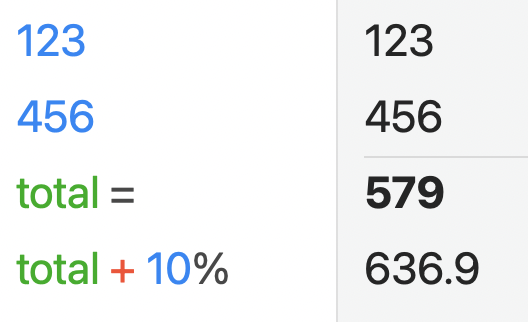
Añada una línea de porcentaje a su subtotal para que esto se aplique al resultado final.
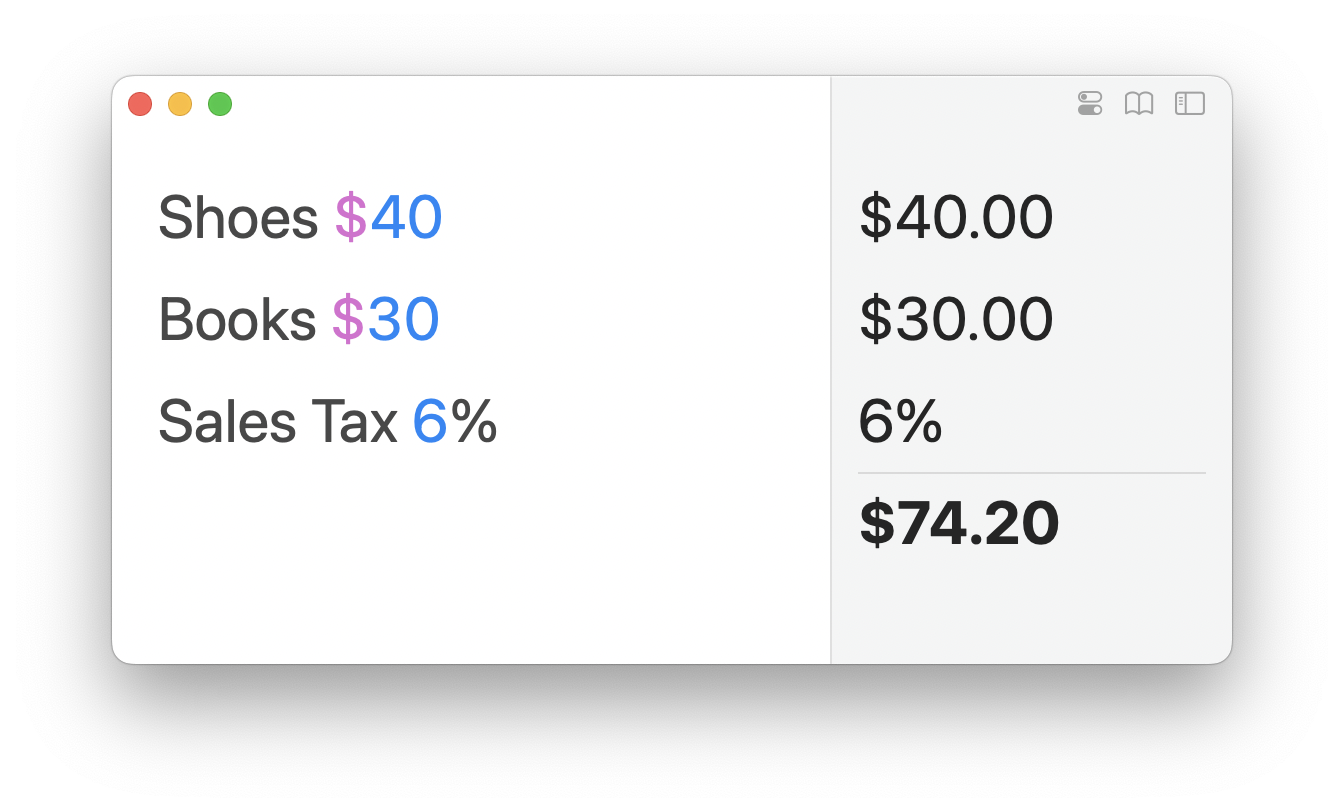
<figure><img src="/files/YD9uo8H1iZ2Q6IwVDkYc" alt="" width="375"><figcaption><p>Un porcentaje en un subtotal se aplicará al resultado final</p></figcaption></figure>

## Personalizar el total flotante

#### Mostrar/ocultar el total flotante

Si el total no es útil en su flujo de trabajo en particular, puede ocultarlo pasando el ratón por encima y haciendo clic en `Hide` (Ocultar).

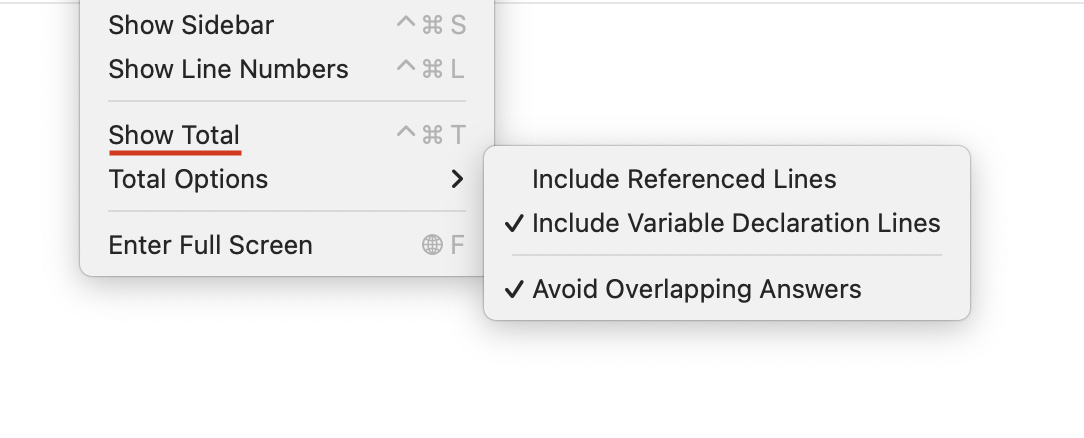
Para mostrar el total de nuevo, vaya al menú `View` (Vista) y elija `Show Total` (Mostrar Total).

<figure><img src="/files/jgMeYes7h1UuwYdknNLs" alt=""><figcaption><p>Hay opciones adicionales de total flotante disponibles en el menú View</p></figcaption></figure>

#### Cambiar el tipo de estadística

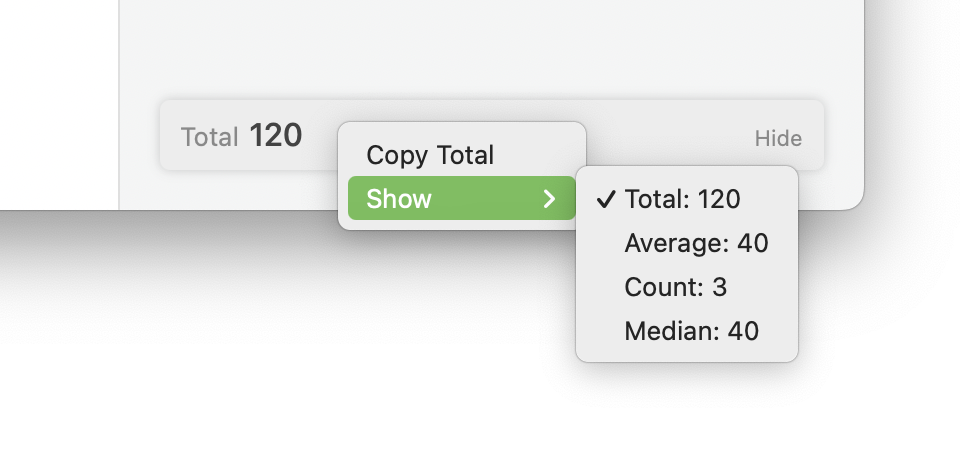
También puede mostrar el promedio, el conteo y la mediana de sus líneas haciendo clic con el botón derecho del ratón en el total flotante y eligiendo una estadística alternativa.

<figure><img src="/files/iAZQmaavkcqIOYyuOuba" alt=""><figcaption><p>Elegir una estadística alternativa para el total flotante a través del menú contextual</p></figcaption></figure>


---

# Agent Instructions: Querying This Documentation

If you need additional information that is not directly available in this page, you can query the documentation dynamically by asking a question.

Perform an HTTP GET request on the current page URL with the `ask` query parameter:

```
GET https://documentation.soulver.app/es/documentation/totals-and-subtotals.md?ask=<question>
```

The question should be specific, self-contained, and written in natural language.
The response will contain a direct answer to the question and relevant excerpts and sources from the documentation.

Use this mechanism when the answer is not explicitly present in the current page, you need clarification or additional context, or you want to retrieve related documentation sections.